Pause location sharing
Stop sharing your location for a while, on one phone or all of them, without leaving your groups.
Pause
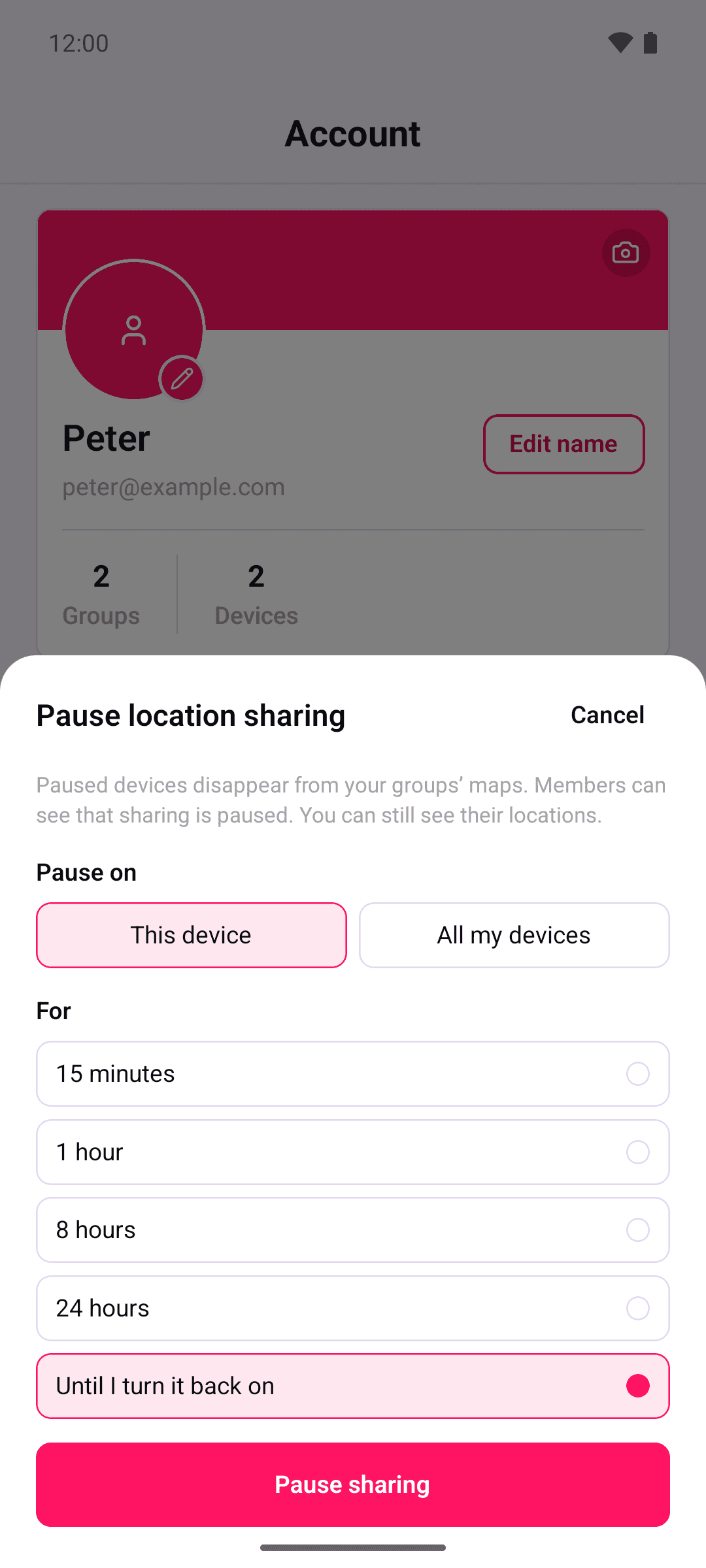
- Open the Account tab and find the location sharing card.
- Tap Pause sharing.
- Under Pause on, choose This phone or All my devices.
- Choose how long: 15 minutes, 1 hour, 8 hours, 24 hours or Until I turn it back on.
- Tap Pause sharing.
The map shows "Your location sharing is paused" while it lasts. To change how long it lasts, tap Change pause on the card.
What your family sees
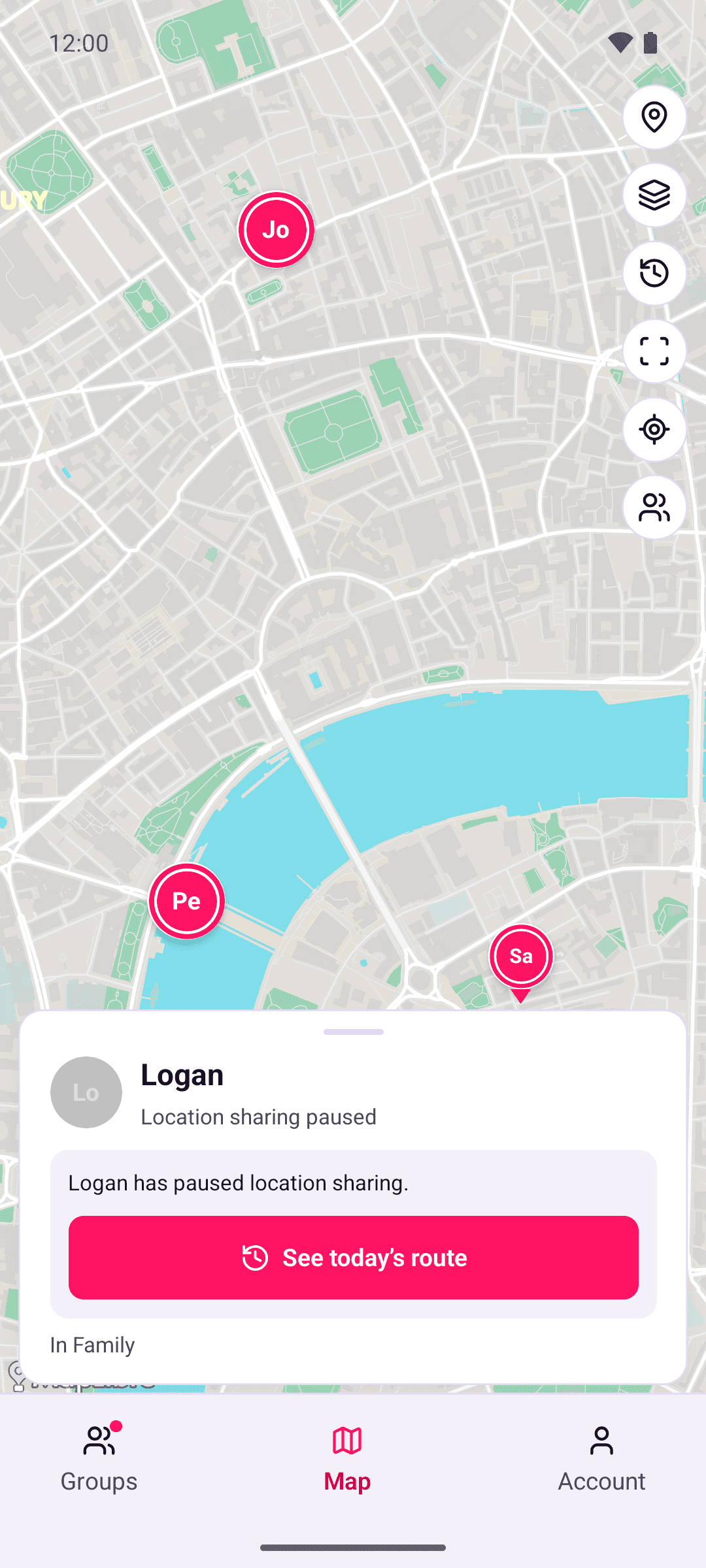
- Your pin shows "Location sharing paused". Your last location isn't shown.
- They don't see when the pause ends.
- In Timeline, they can still see where you went before you paused. Your details on their map have a See today's route button that opens it. Afterwards, they can see roughly when you paused and resumed, but not where you went in between.
- You stay in your groups and can still see everyone else.
- To check who can see you, go to Account › Who can see me. See Who can see me.
- Your phone doesn't send arrivals at or departures from places while you're paused.
- You still get alerts about other people. On a self-hosted server they can arrive later while you're paused.
Resume
On the Account tab, tap Resume sharing, or Resume all devices if you paused all your devices. You can also tap Resume on the banner on the map. A timed pause ends by itself.
Your pin comes back once your phone has a new location. Your family never sees a location from during the pause.
This phone or all my devices
A pause covers every group you're in.
| You pause | This phone | Your other phones | Phones you add later |
|---|---|---|---|
| This phone | Paused | Keep sharing | Share |
| All my devices | Paused | Paused | Paused |
A phone can have its own pause as well as the pause on all your devices. Resume all devices leaves a phone's own pause in place, so that phone stays paused until you tap Resume sharing on it. Resume on the map banner ends both.
To pause or resume another of your phones, for example a tablet that stays at home, go to Account › Devices and tap it. While all your devices are paused, the phone's card there shows Pause this phone separately to give it its own pause, or Remove device pause to end one.
Offline
You can pause without a connection. Your phone stops sharing straight away, and your groups find out when you reconnect. Until then the card says "Sharing stopped on this phone." The pause holds when you reconnect, even if sharing was changed on another phone while you were offline.
If a change you made offline can't be applied, the card says "Your last change to location sharing couldn't be applied, so this shows the current setting." Make the change again if you still want it.
Resume from another phone
When you resume a phone from another phone, it notices within about 5 minutes during a timed pause, and within about 15 minutes after Until I turn it back on. If it shows a "Location sharing turned back on" or "Location sharing changed" notification, tap it, or open OpenBeacon on that phone.
What the server knows
Locations stay encrypted, but the server knows that you paused, on which phones, and when it ends. It needs this to stop paused phones' locations reaching your groups. Your group members see that you're paused, and in Timeline roughly when you paused and resumed. A paused phone still checks for changes and alerts, so the server can tell it's running.