App and server versions
What the update screens mean and what to do about them.
The app on your phone and the server it connects to are updated separately. Usually that's fine. When a change means they can no longer work together, the app shows a full screen telling you which one needs updating.
The screens
| Screen | What it means | What to do |
|---|---|---|
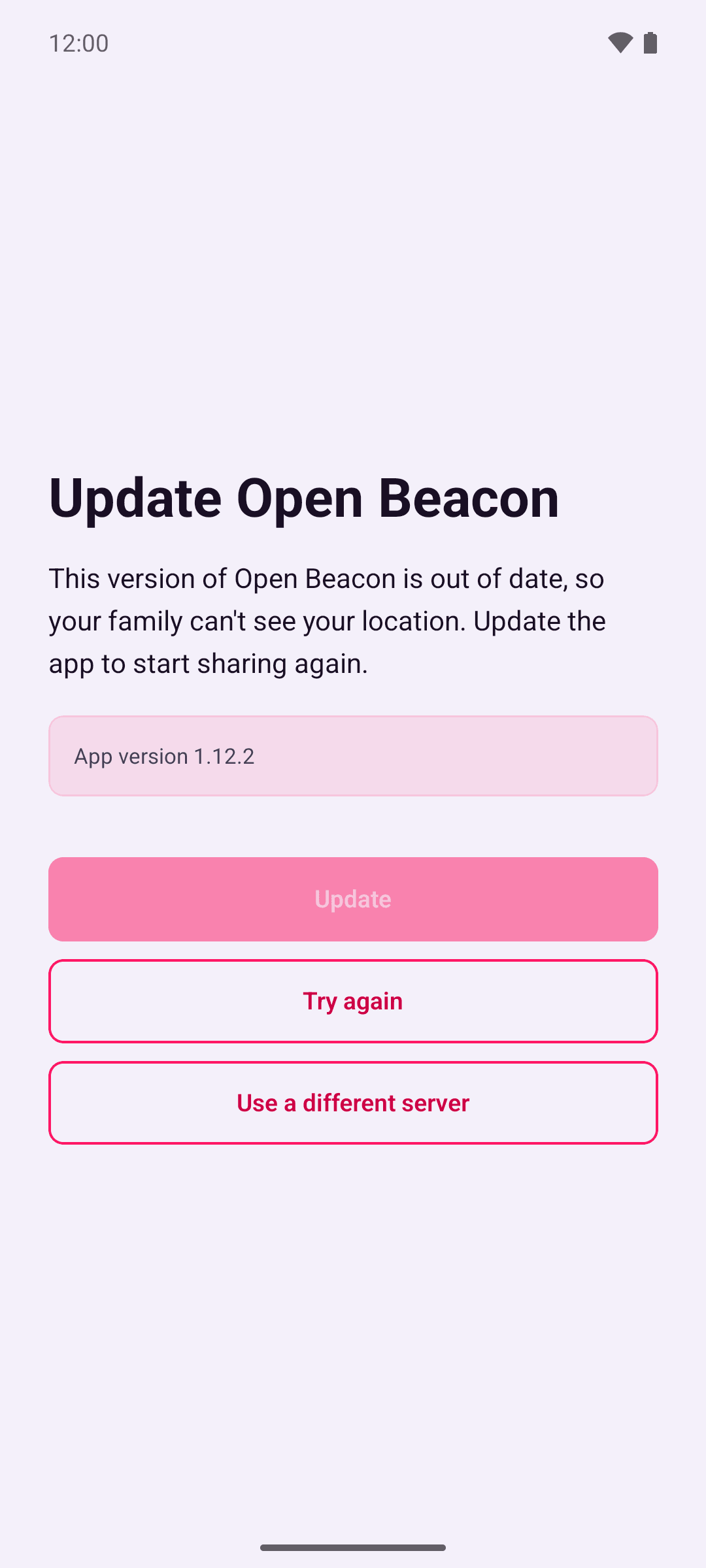
| Update OpenBeacon | Your app is too old for the server. Your location isn't being shared. | Tap Update to open Google Play. |
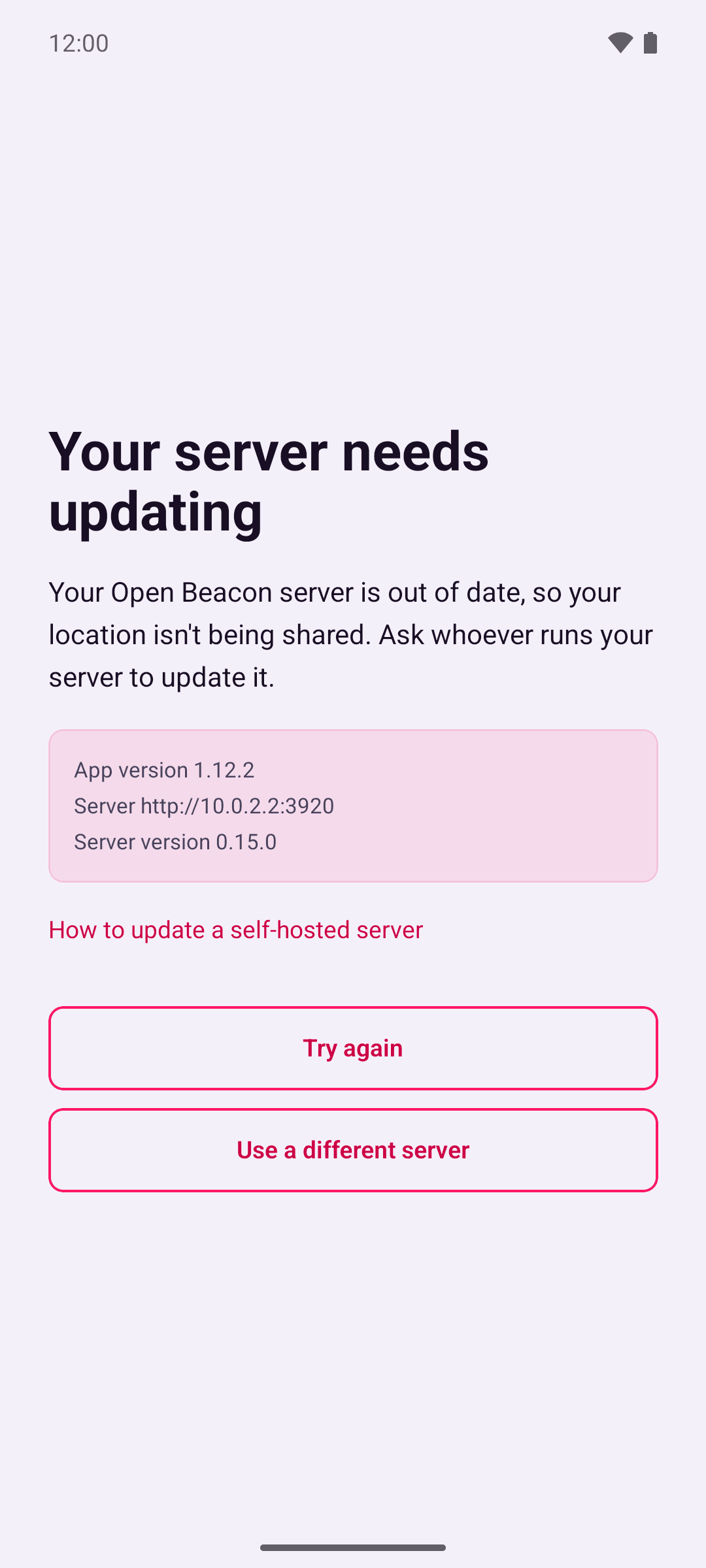
| Your server needs updating | The server is too old for your app. Your location isn't being shared. | Ask whoever runs your server to update it. The screen shows your app and server versions to pass on. |
| We're updating OpenBeacon | The same, on our hosted server, while we update it. | Wait a little while and tap Try again. |
| The app and server don't match | Something unexpected is missing. | Tap Try again. If it doesn't go away, tap Contact us. |
Every screen also offers Use a different server, and Sign out while you're signed in. A new server is used straight away. A screen can also show a message from whoever runs your server.
While you're blocked
- When the server needs updating, your phone keeps recording your location, encrypted, and sends it once the server is updated. If it takes a long time, the oldest locations may be dropped. See When your phone is offline.
- When the app needs updating, or the app and server don't match, your phone stops recording. Nothing is saved to send later, and the "Sharing your location" notification goes away until it's fixed.
- A notification tells you what to do, even if the app is closed. Its title is "Update OpenBeacon" when the app is too old, and "Location sharing paused" otherwise. It goes away once the problem's fixed.
- The app checks again when you open it and every few minutes in the background.
Being offline or a server being briefly down never shows these screens. They only appear when the server clearly says the versions don't work together.
When you choose a server
When you save a server address, the app checks the server's version first. It warns you if they don't work together:
| Message | What it means | What to do |
|---|---|---|
| "This server needs updating" | The server is too old for your app. You can't share your location until it's updated. | Ask whoever runs it to update it. |
| "Update the app first" | The server needs a newer app. | Update Open Beacon from Google Play, then save the address again. |
Save anyway keeps the address. Cancel leaves the app on the server it was using.
If you see "Couldn't reach this server", see Troubleshooting.
Announcements
Whoever runs your server can show a banner at the top of the Groups, Map and Account tabs, for example to warn about planned downtime. Times in it are in your phone's time zone. On a self-hosted server, the banner says "From your server" and its address. Tap the cross to dismiss it. It also goes away by itself when the announcement ends. If you dismiss a planned downtime warning early, it shows once more an hour before the downtime starts.
Find your versions
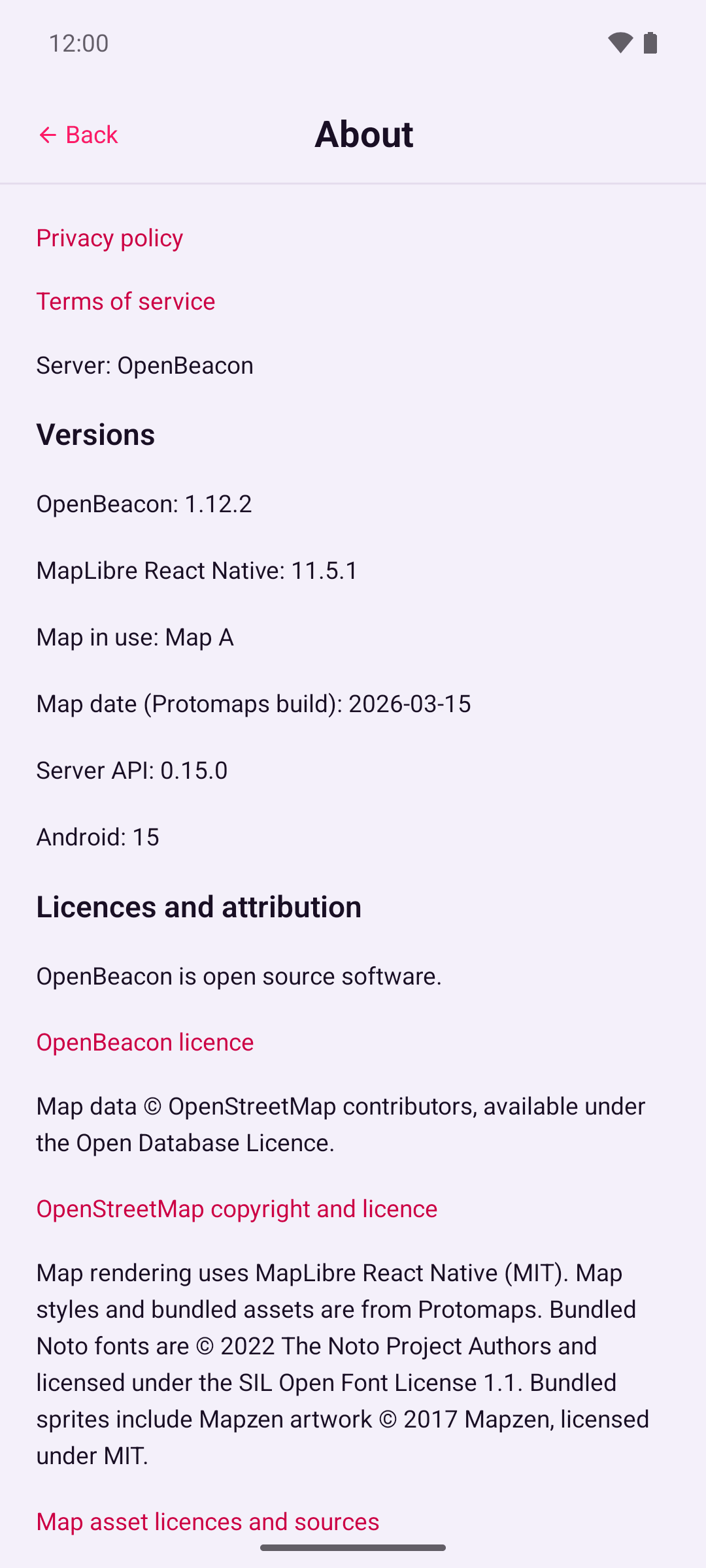
Account › About shows your app version, your server's version and the map you're using. Include them when you ask for help. It's also where you delete saved maps.