App lock
Ask for your face, fingerprint or screen lock before OpenBeacon opens on this phone.
App lock stops someone who picks up your unlocked phone from opening OpenBeacon. It uses your phone's own screen lock, so you open OpenBeacon the same way you unlock your phone: with your face, fingerprint, PIN, pattern or password. OpenBeacon has no PIN of its own and never sees your face or fingerprint.
App lock is a setting on this phone only. Nothing about it is sent to the server. Turn it on separately on each phone you use.
Turn on app lock
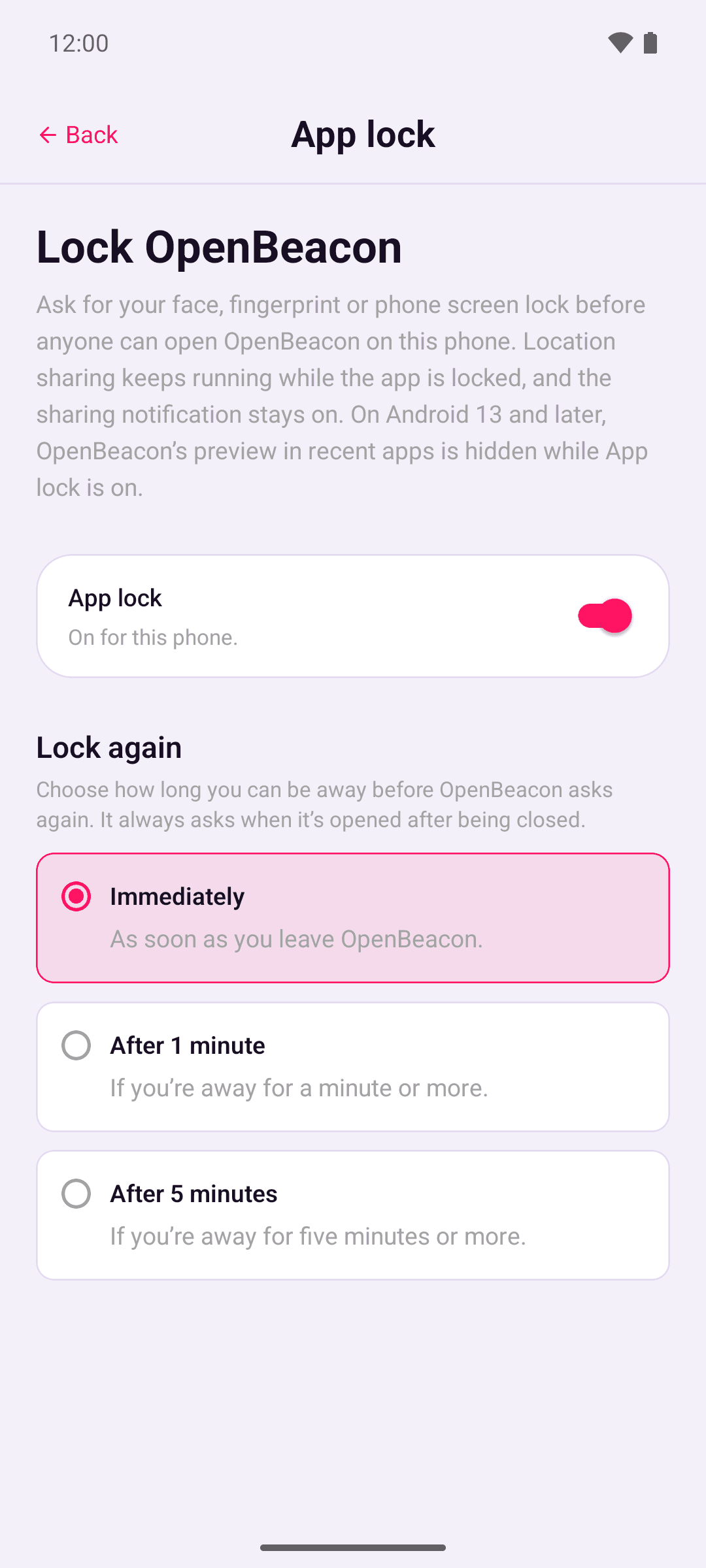
Go to Account › App lock and turn on App lock. Your phone asks for its screen lock to check it's you.
If your phone has no screen lock, the switch is greyed out. Set one up in Android's Settings first, then come back.
Open OpenBeacon when it's locked
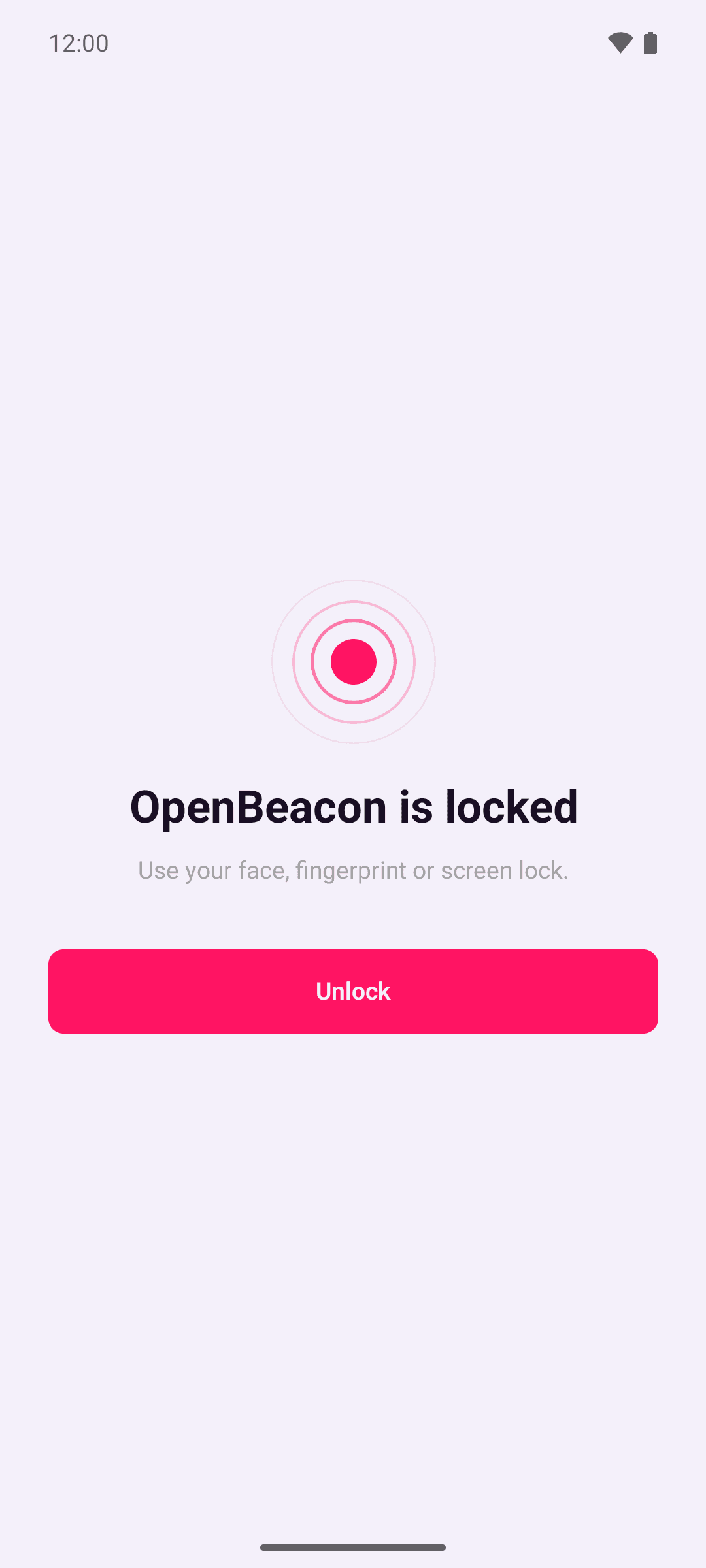
When OpenBeacon is locked, it shows OpenBeacon is locked and asks for your face, fingerprint or screen lock straight away. If you close that request, tap Unlock to try again. Press back to leave the app.
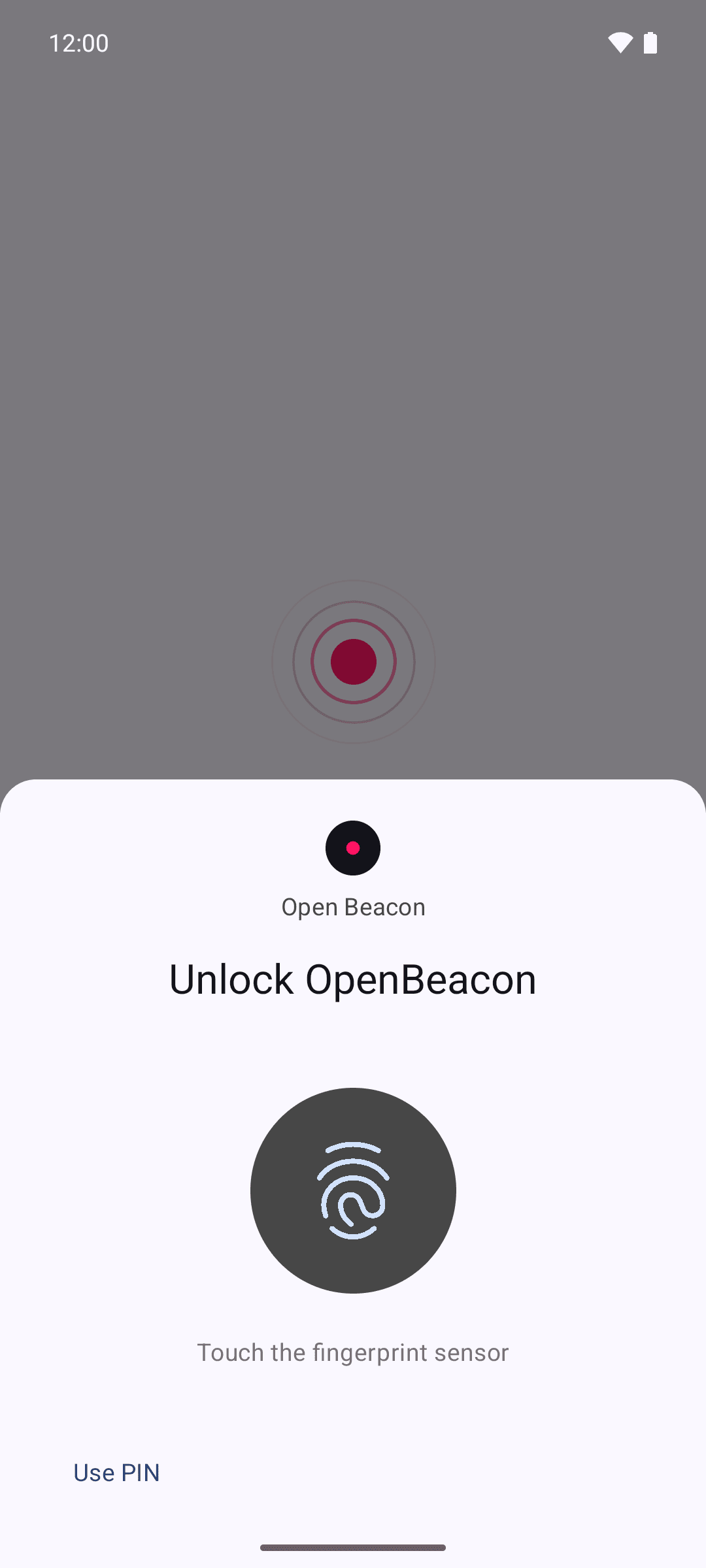
If you get it wrong too many times, Android makes you wait before you can try again, as it does on your phone's lock screen.
When it locks again
OpenBeacon always locks when you open it after it's been closed, including after you swipe it away from recent apps. Under Lock again, choose when it locks after you leave it:
| Setting | Locks when you come back |
|---|---|
| Immediately | Every time |
| After 1 minute | After you've been away for a minute or more |
| After 5 minutes | After you've been away for five minutes or more |
Screens that OpenBeacon opens itself, such as the photo picker and permission requests, don't count as leaving for Immediately, unless you stay on them for 5 minutes or more. They do count towards 1 and 5 minutes.
Choosing a longer time asks for your screen lock first. Choosing a shorter one doesn't.
Changing your phone's clock doesn't stop OpenBeacon locking again.
On Android 13 and later, OpenBeacon shows as a blank card in recent apps while app lock is on. On Android 12 and earlier, the card can show what was last on screen.
While it's locked
Location sharing carries on and the sharing notification stays on. If OpenBeacon is locked when you tap the notification, you need to unlock it before you can pause sharing. Anything that was open when OpenBeacon locked, such as the pause options or an invite link you opened, waits behind the lock until you unlock it.
Turn off app lock
Go to Account › App lock and turn off App lock. Your phone asks for its screen lock first.
App lock stays on if you sign out, so OpenBeacon still asks for your screen lock before the sign-in screen. To turn it off, sign in and go to Account › App lock.
If you remove your phone's screen lock, OpenBeacon turns app lock off the next time it asks you to unlock, and tells you. Android only lets you remove a screen lock if you know it.