Set up a new phone
When you sign in on another phone or tablet, it can't see anyone's location until it's set up. That keeps your family safe if someone else learns your password.
The first phone you ever sign in on is ready straight away. Every phone after that, including a reinstall of the app, shows a setup screen first. To set it up you need one of your phones that's already set up, or your recovery phrase. Without either, you can start fresh.
Your choices
Choose an option and tap Continue. You only see the options that can work for your account: for example, Enter your recovery phrase only appears if your account has one, and Link with your other device only appears if another of your phones is set up.
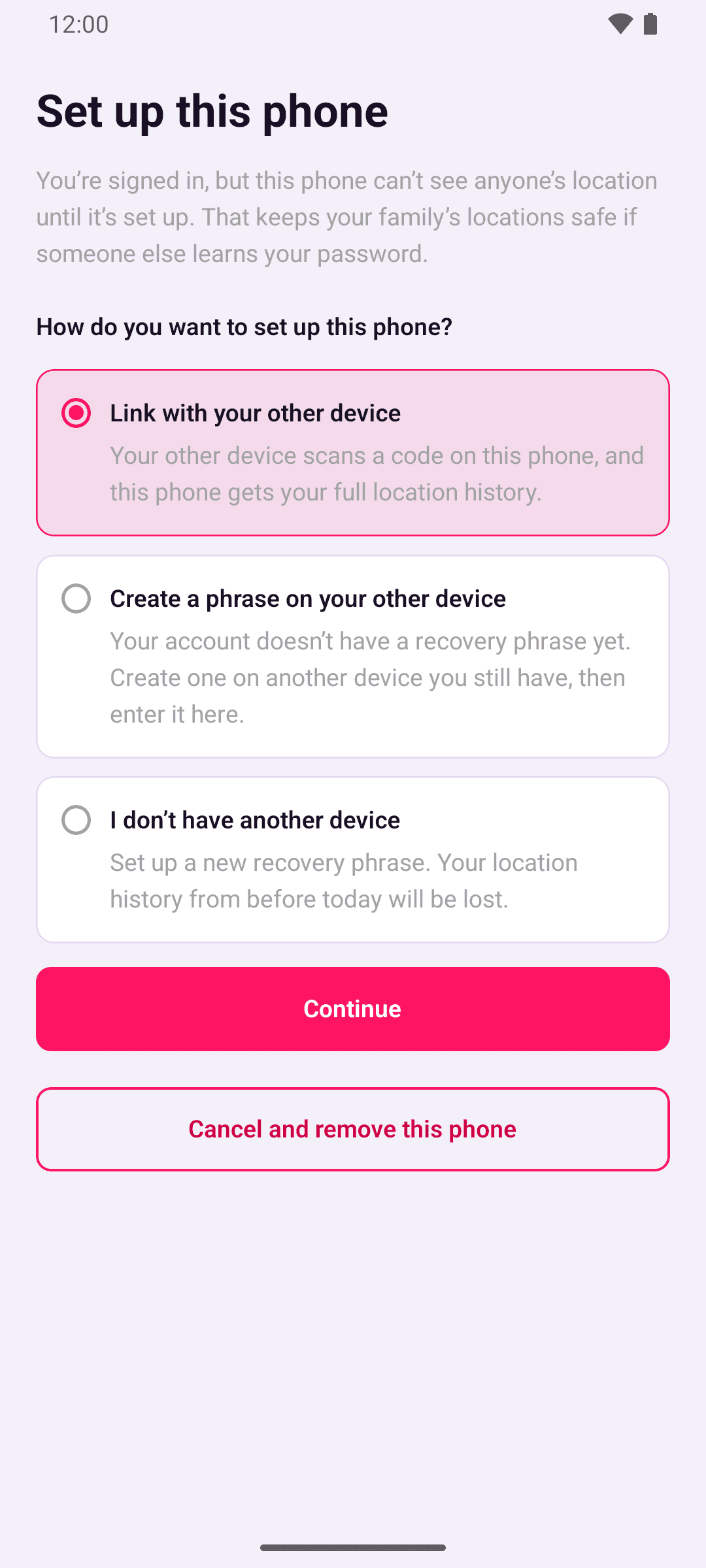
- 1Is one of your set-up phones with you?YesLink with your other deviceNo
- 2Do you have your recovery phrase?YesEnter your recovery phraseNo
- 3No phrase yet, and your other set-up phone is somewhere else?YesCreate a phrase on your other deviceCreate the phrase on that phone when you can, then enter it here.No
- None of theseStart freshShown as I've lost my phrase, I don't have another device or Start fresh. This phone can't read your location history from before today.
Link with your other device
The best choice if one of your set-up phones is with you.
- On the new phone, choose Link with your other device and tap Continue. It shows a QR code.
- On the phone that's already set up, go to Account › Devices › Add a device and scan the code.
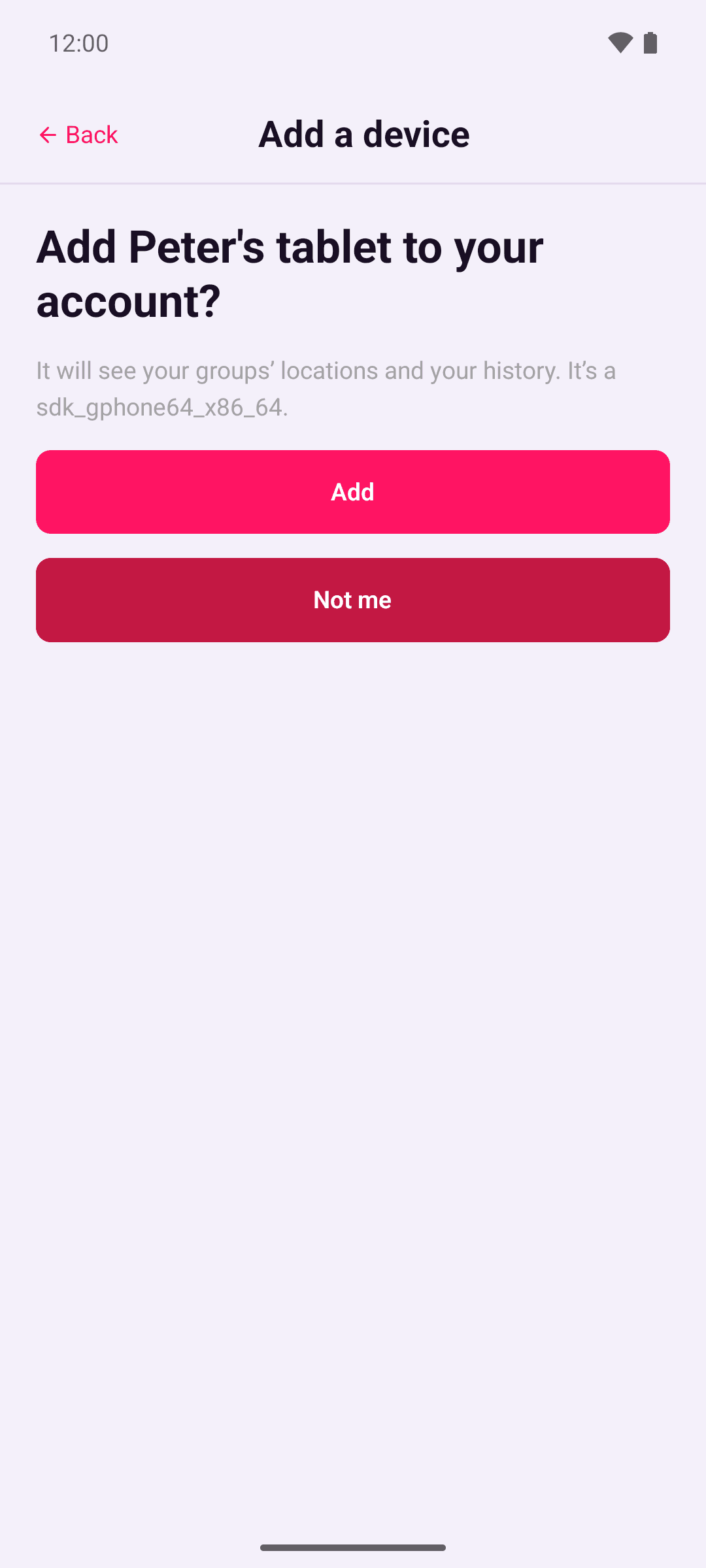
- Check the name shown is the phone you're setting up, then tap Add.
The new phone moves on by itself. It gets your location history and sees your groups' locations shortly afterwards.
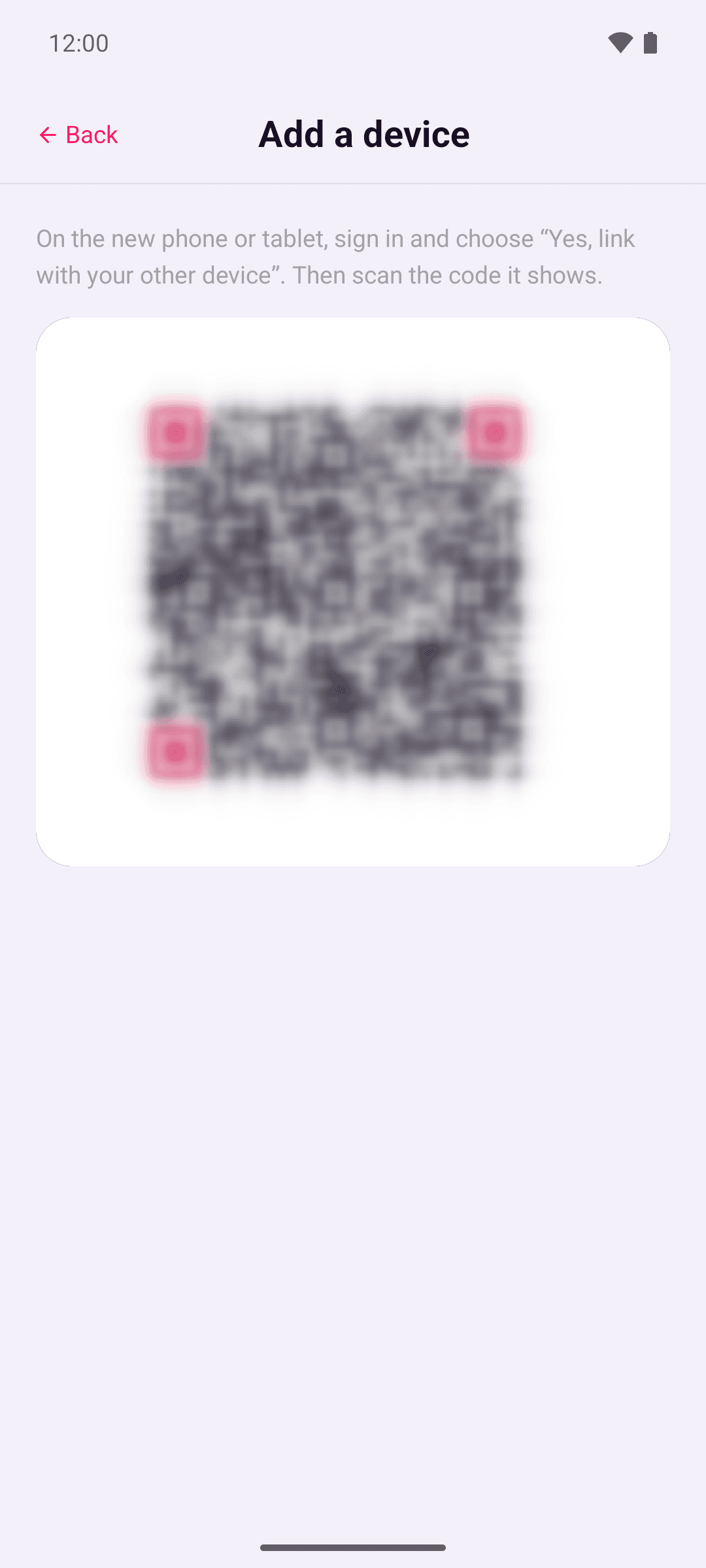
Codes last 10 minutes. If yours runs out, tap Show a new code.
If the name shown isn't a phone you're setting up, tap Not me. OpenBeacon removes that phone from your account and signs it out straight away. If you didn't sign in on it, someone else knows your password, so change it.
Enter your recovery phrase
If you've set up a recovery phrase, choose Enter your recovery phrase and enter your 12 words. The phone gets your location history and starts working. See Restore on a new phone.
Create a phrase on your other device
If your account has no recovery phrase and your other phone isn't with you, choose this option. When you can, create a phrase on the other phone in Account › Recovery phrase › Create recovery phrase. The new phone moves on by itself once the phrase exists, and asks you to enter it.
If you can't get to the other phone, tap I can't get to my other device to start fresh instead.
Start fresh
I don't have another device, I've lost my phrase and Start fresh are the same choice under different names. The app shows you a new recovery phrase to save, and the phone works normally from then on.
Starting fresh can't be undone. This phone can never read your location history from before today, and your old recovery phrase stops working. Your groups and members stay.
If you have other phones, OpenBeacon lists them afterwards, all ticked for removal. Untick any you still use, then tap Remove ticked devices. To remove none, tap Keep them all.
See Reset a lost phrase for what this means for your other phones.
After setup
You're asked to give the phone a name and icon, such as "Work phone". You can skip this and do it later in Account › Devices. Then OpenBeacon asks for the permissions it needs.
If you don't finish
Tap Cancel and remove this phone to remove it from your account. The server removes a phone that isn't set up within 7 days.
If you opened a group invite link before the phone was set up, the invite opens once setup is done. Invite links only last 5 minutes, so you may need to ask for a new one.